
Drawquarium Wallpaper Quality: Performance, Resolution, and Display Settings
Drawquarium wallpaper quality depends on the in-game display toggles, screen resolution detection, and graphics configuration selected before switching to your desktop background. Adjusting framerate limits and performance settings helps stabilize tank rendering while running the simulation behind active desktop windows.
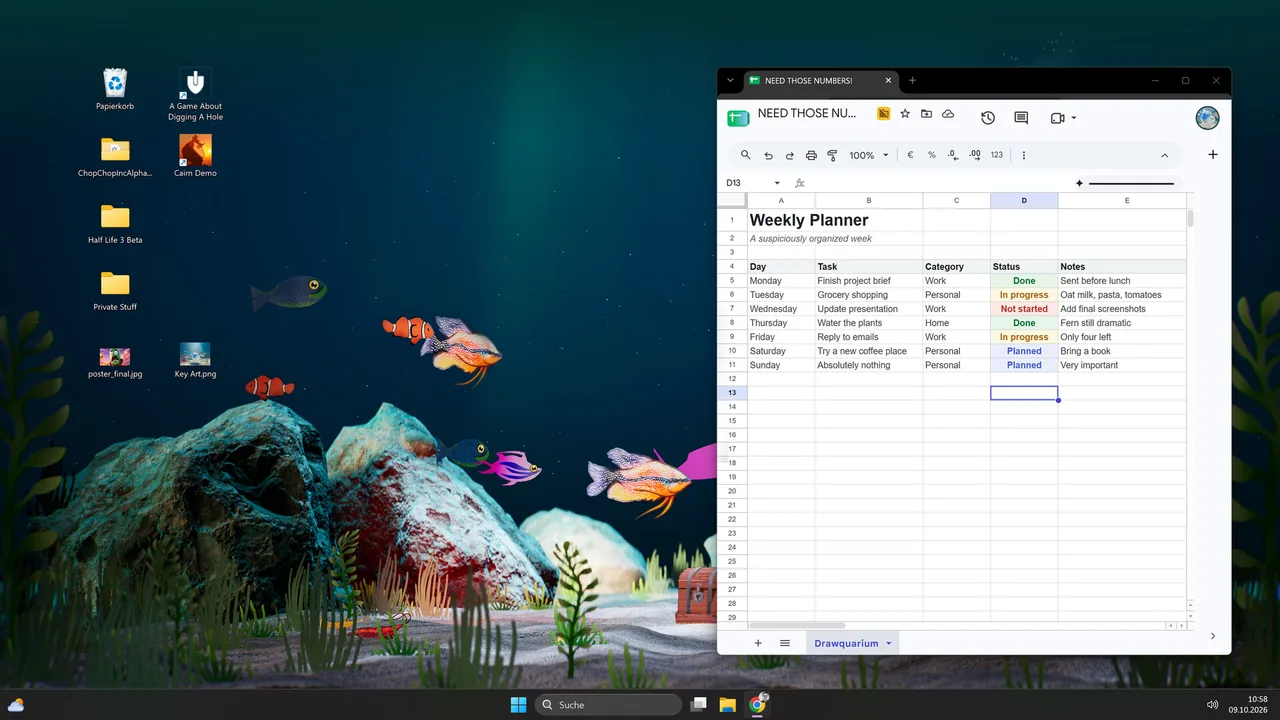
Drawquarium wallpaper quality depends on the in-game display toggles, screen resolution detection, and graphics configuration selected before switching to your desktop background. Adjusting framerate limits and performance settings helps stabilize tank rendering while running the simulation behind active desktop windows.
Built-In Desktop Display and Graphic Controls
The developer provides specific options inside the client to manage how tanks appear when converted into a background. When entering wallpaper mode, the setup screen presents toggles for quality mode alongside a maximum frames-per-second selector.
These settings run the aquarium next to the operating system clock so fish remain visible during regular computer tasks. Setting an FPS cap limits the processing resources allocated to aquarium animations while running other software. Leaving quality mode active preserves the lines of player creations, customized substrates, and underwater lighting while you feed fish or watch them swim across the display area.
Display Mode Adjustments and Performance Profiles
The client offers distinct rendering approaches depending on hardware capabilities and target frame targets. The table outlines how each setting functions during desktop sessions based on player tests and store documentation.
| Display Option | Tested Situation | Performance Result |
|---|---|---|
| Quality Mode | Standard desktop work with static background windows | Preserves original drawing sharpness and lighting layers |
| Performance Mode | High-resolution displays experiencing frame stutter | Lowers background rendering overhead during active work |
| Max FPS Cap | Multi-window multitasking beside the taskbar clock | Limits background cycle demand to prevent input lag |
Testing alternate profiles helps when background rendering slows down. In a Steam discussion thread on poor wallpaper framerates, players identified that running performance mode lowers system pressure when moving between desktop software and the aquarium view.
Resolution Detection and Pixelation Factors
Steam forum threads about wallpaper mode indicate that display resolution detection can alter visual fidelity. In certain configurations, the game misreads higher-density screens, such as identifying a 2560x1440 display as 2048x1152. This discrepancy stretches the rendered aquarium canvas across the physical monitor, causing pixelation and jagged asset edges.
When graphic scaling mismatches occur, the rendering engine compresses custom fish sprites and decorative vegetation drawn in the tank. Checking Windows display scaling settings before launching the background mode keeps the rendering viewport aligned with native panel boundaries. Proper alignment maintains the visual clarity seen in the primary simulation window.
Managing System Resources and Desktop Interface
Drawquarium requires a quad-core Intel i5-8400 or AMD Ryzen 5 1600 processor, 8 GB of system memory, and a 6 GB DirectX 12 graphics card such as an NVIDIA GTX 1060 or AMD RX 580. Because desktop mode renders live 3D fish movement and physics behind other applications, maintaining these base specifications prevents severe framerate drops.
The desktop interface also integrates productivity tools. Players can position tasks, timers, and clock customization elements directly alongside the swimming creatures. When returning to the standard simulation to unlock decorations or apply a crash fix after unexpected freezes, the application uses an arrow icon pointing downward toward the taskbar area to restore the primary game window. Adjusting resolution, capping framerate, and toggling performance settings ensure the tank remains responsive throughout regular desktop sessions.
Next step
Bioluminescent Fish
Understand how the light layer works in Drawquarium to design glowing fish and pair them with ambient tank backgrounds.