
Drawquarium Draw Fish: Canvas Tools, Templates, and Swim Types
In Drawquarium, drawing fish begins by selecting Add a Thing, picking between blank canvases, base templates, or imported PNG files, and customizing body silhouettes before applying paint layers and swim behaviors.
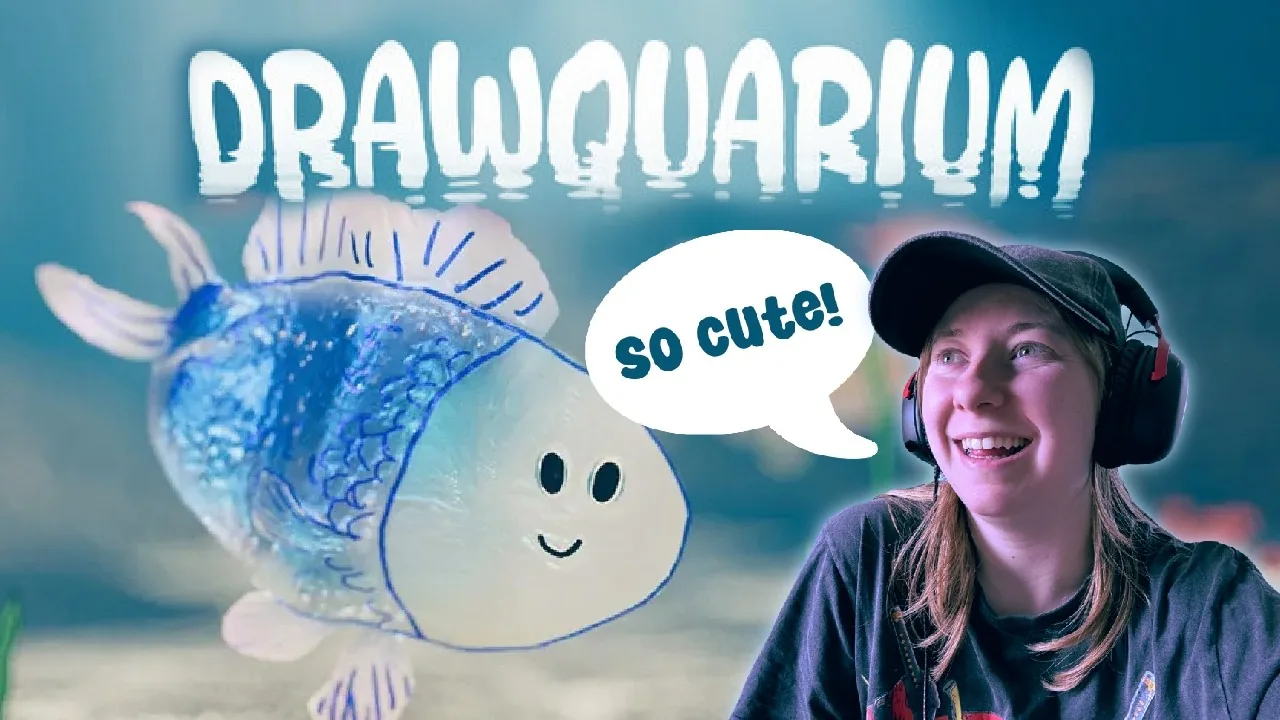
In Drawquarium, drawing fish begins by selecting Add a Thing, picking between blank canvases, base templates, or imported PNG files, and customizing body silhouettes before applying paint layers and swim behaviors.
Unlocking the Fish Creator
Starting a new tank does not grant instant access to the fish creator. The creation interface opens only after placing two distinct plant creations into the tank. Using the Add a Thing menu, players must first place initial greenery by styling templates or making custom plants like moss, kelp, or trees. Once two unique species are planted using the draw plants interface, an on-screen prompt confirms that fish drawing is unlocked.
Clicking Add a Thing after meeting this threshold presents the fish creation option. The interface assigns a randomly generated name, such as Lionel, Henry Bubbles, Tuna Turner, or Giggles, which can be accepted, rerolled, or replaced with a custom name before painting starts.
Canvas Interface and Step-by-Step Creation
The fish creator separates artwork setup into distinct sequential phases: Paint Shape, Colorize, and behavioral assignment. A third phase labeled Bioluminescence exists on the interface screen, though the demo build keeps this specific toggle locked for the full game release.
Step 1: Defining the Silhouette
Every creature requires a solid physical silhouette before colors and markings can be placed:
- Select a foundation method: clear the canvas to draw an original shape with the brush, choose from ready-made drawing templates, or bring in an external silhouette via import png.
- Adjust the Brush Size slider to sketch body boundaries, fins, tails, and tentacles.
- Use the Eraser tool to carve sharp outlines or remove excess strokes.
- Toggle Horizontal Symmetry or Vertical Symmetry when designing symmetrical creatures, such as top-down rays or uniform round bodies.
- Turn on Smooth Draw to even out mouse or tablet strokes across complex curves.
- Use the keyboard key X to flip the orientation of shapes or imported assets so creatures face the intended swimming direction.
- Fill the silhouette interior entirely, as blank transparent areas will not register surface paint in the subsequent step.
Step 2: Applying Color and Detail
Once the shape is confirmed, clicking next opens the coloring phase:
- Pick colors using the integrated color wheel or sample placed pigments using the eyedropper color picker.
- Store preferred shades in the color save slots along the interface for fast matching across fins and patterns.
- Configure the brush dynamic sliders:
- Flow: controls the rate and density of paint deposited per stroke.
- Hardness: defines crisp edges when set high, or soft airbrush gradients when lowered.
- Opacity: allows subtle layering of scales, highlights, and shadow gradients.
- Activate the Masked Brush when adding surface details like eyes, gills, scales, or clothing textures. The masked brush restricts new strokes strictly within the boundary of the existing silhouette, preventing stray lines outside the body.
- Use the Line Tool to draw straight accents across fins, spines, or body segments.
- Toggle Wave Animation to enable or disable underwater body flexion effects.
Selecting Swim Styles and Fish Attributes
Before adding a finished fish to the tank, the creator requires choosing a movement archetype and defining growth scales. Drawquarium includes four behavioral presets that dictate how the creature interacts with tank water levels:
| Movement Archetype | Tank Behavior | Visual Pairing |
|---|---|---|
| Normal and active fish | Swims across midwater zones at moderate speed | Classic fish silhouettes and schooling designs |
| A more floaty chill fish | Drifts slowly with long glide intervals | Jellyfish shapes, flat fish, and wide fins |
| Constantly flying like a spacecraft | Moves rapidly across tank boundaries | Torpedo bodies, sharks, barracudas, and submarines |
| Hangs down low like he's hiding something | Stays along the substrate and lower tank base | Starfish, snails, catfish, and lobsters |
Alongside behavioral archetypes, the screen provides a size slider showing an adult preview next to the initial baby state. Fish spawn into the aquarium as small juveniles and steadily increase in scale over time.
Tank Interaction and Aquarium Life
Placing a finished creature submerges it into the living aquarium space. New fish begin exploring immediately, reacting to tank conditions and companion creatures:
- Feeding routines: Clicking the Feed button allows dropping items such as burgers, worms, pizza slices, or custom drawn food into the tank. Fish pursue falling items to satisfy hunger, and feed fish routines accelerate juvenile growth toward adult size.
- Social dynamics: Selecting an active fish displays relationship markers, including titles like Oldest Fish or designations for designated best friends. As detailed in fish relationships, creatures develop bonds, rivalries, and custom quotes visible upon inspection.
- Glass interaction: Clicking directly inside the water causes nearby fish to follow the cursor, while right-clicking taps on the aquarium glass, producing an audible reaction that startles nearby swimmers.
- Population limits: The base aquarium supports up to 10 fish before requiring tank expansion. Reaching 30 plants, 10 fish, and a secondary aquarium unlocks the castle decoration milestone in the creation path.
Next step
Draw Plants
Create custom tank foliage using shape drawing tools, plant templates, shading layers, and tank placement controls across your aquariums.