
Drawquarium Import PNG: Adding Custom Art and Fish
Drawquarium lets you import PNG files to transform external 2D art into swimming creatures or aquarium decorations. Players can select transparent images from their computer, trim rough borders using in-game drawing tools, and assign custom swimming behaviors to build custom desktop tanks.
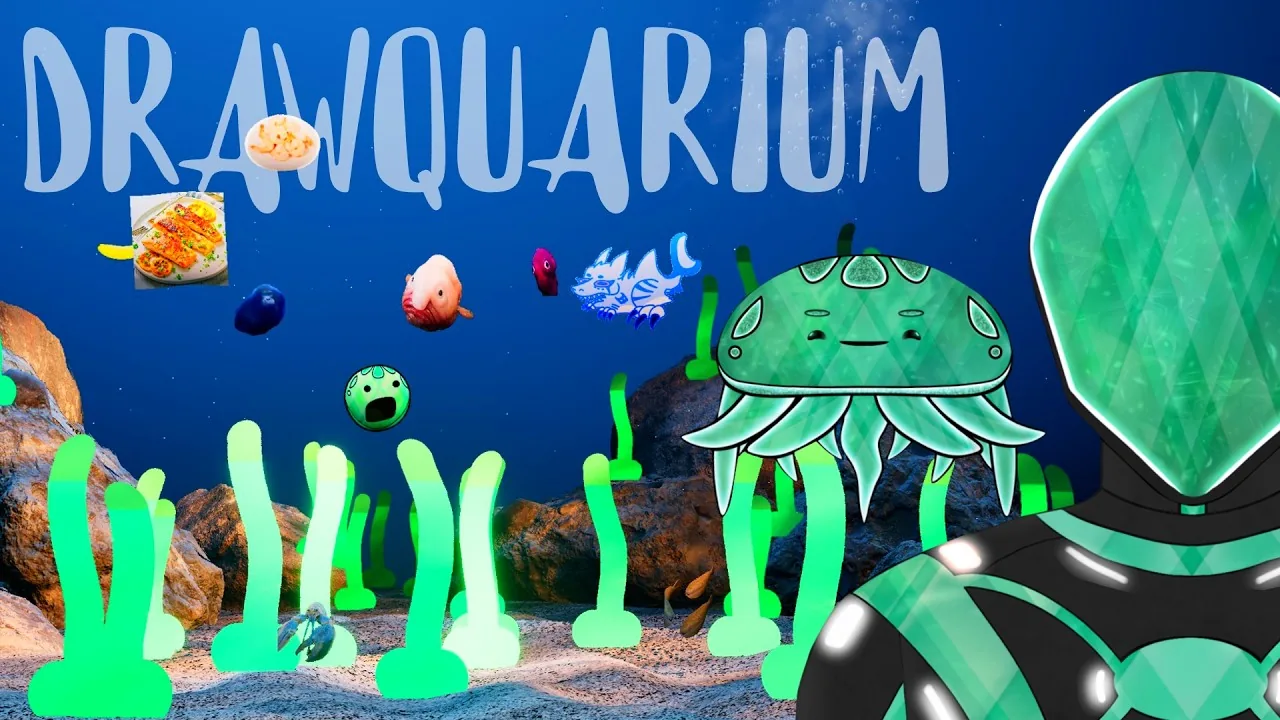
Drawquarium lets you import PNG files to transform external 2D art into swimming creatures or aquarium decorations. Players can select transparent images from their computer, trim rough borders using in-game drawing tools, and assign custom swimming behaviors to build custom desktop tanks.
How the PNG Import Tool Works
Adding external art to your aquarium starts in the creation menu. Selecting "Add a thing" opens the design canvas where the "Import PNG" button connects directly to your local file explorer. The game processes incoming raster graphics and places them onto the active canvas, allowing you to bypass the need to draw fish manually with mouse strokes.
Files saved with transparent backgrounds maintain transparency upon import. Transparent PNG files allow clean character silhouettes to enter the tank without rectangular borders, whereas images with solid backdrops require manual cleanup inside the editor. Once brought into the canvas, the game lets you scale, position, and flip the orientation of the sprite before confirming its placement in the water.
Adjusting and Trimming Imported Artwork
After placing an image onto the canvas, built-in brush and modification tools let you refine edges. The editor includes an eraser tool with adjustable hardness, opacity, and brush size settings. If an image contains unwanted background remnants around fins, claws, or outlines, you can trace along the perimeter to isolate the subject.
The canvas interface features transformation options to ensure your creation faces the intended direction:
- Click the transform button to adjust horizontal and vertical alignment.
- Use the horizontal flip tool if your creature appears backwards relative to its swim path.
- Adjust the size slider to establish the adult scale of the creature before confirming placement.
- Smooth rough edges using the smooth draw setting or brush opacity adjustments.
These editing tools work equally well when preparing environmental objects. You can import custom plant graphics, rocks, or whimsical items alongside foliage you create when you draw plants to diversify the tank habitat.
Selecting Movement Behaviors and Creature Profiles
Before placing an imported graphic into the tank, Drawquarium prompts you to choose an animation style. This setting determines how the physics engine drives the object through the water column. You can also assign whether the asset spawns as an individual entity or as a tight school of multiple creatures.
| Movement Behavior | In-Game Motion Profile | Recommended Art Type |
|---|---|---|
| Normal Active Fish | Swims steadily at mid-depth with balanced pacing | Standard marine fish, simple doodles, and preset outlines |
| Floaty Chill Fish | Drifts slowly with gentle hovering arcs | Jellyfish, cephalopods, and relaxed floating items |
| Spacecraft Flyer | Propels forward continuously across the tank | Rockets, mechanical art, and high-energy creatures |
| Bottom Dweller | Stays low along the sand and substrate | Lobsters, crabs, bottom feeders, and anchored items |
Selecting the right profile prevents unrealistic swimming patterns. A blue lobster or bottom-crawling creature functions best when assigned the bottom dweller profile, while circular floating designs look natural with the floaty chill motion.
Feeding and Growing Imported Creatures
Imported creations spawn into the tank as small juvenile versions. The game displays a notification confirming that new fish arrive small and will grow larger over time as you care for them.
You can interact with imported creations by clicking to feed them. The feeding interface drops food items like flakes, worms, or burgers into the water, and fish swim toward the descending food until the tank status registers that there are no more hungry fish. You can also view these customized inhabitants directly on your desktop by running the tank in wallpaper mode.
Troubleshooting Image Import Issues and Crashes
Players on the Steam community forum have encountered specific bugs tied to the import button. In certain PC configurations, clicking "Import PNG" triggers an unhandled access violation crash (EXCEPTION_ACCESS_VIOLATION reading address 0x0000000000000000) inside Drawquarium-Win64-Shipping.exe.
If the game crashes or freezes during an import attempt, test the following practical checks:
- Use the in-game "Report Bug" button to submit system hardware specs and crash logs to developer byKaleb and publisher rokaplay.
- Verify file formats and reduce oversized image dimensions before importing, as excessively large resolutions can cause the button to become unresponsive.
- Ensure the active game build supports the import feature, as certain demo updates temporarily restricted file imports while testing feature sets.
- Review community troubleshooting discussions for a working crash fix if system permissions block file dialog windows.
Next step
Beginner Guide
Learn how to build your first tank in Drawquarium by creating custom plants, configuring swimming behaviors, and feeding hungry fish.