
Drawquarium Beginner Guide: Creation, Care, and Tank Setup
Starting Drawquarium requires painting two initial vegetation pieces to unlock fish creation, feeding your pets daily from the top menu, and expanding tank population milestones to access custom decorations and animated desktop backgrounds.
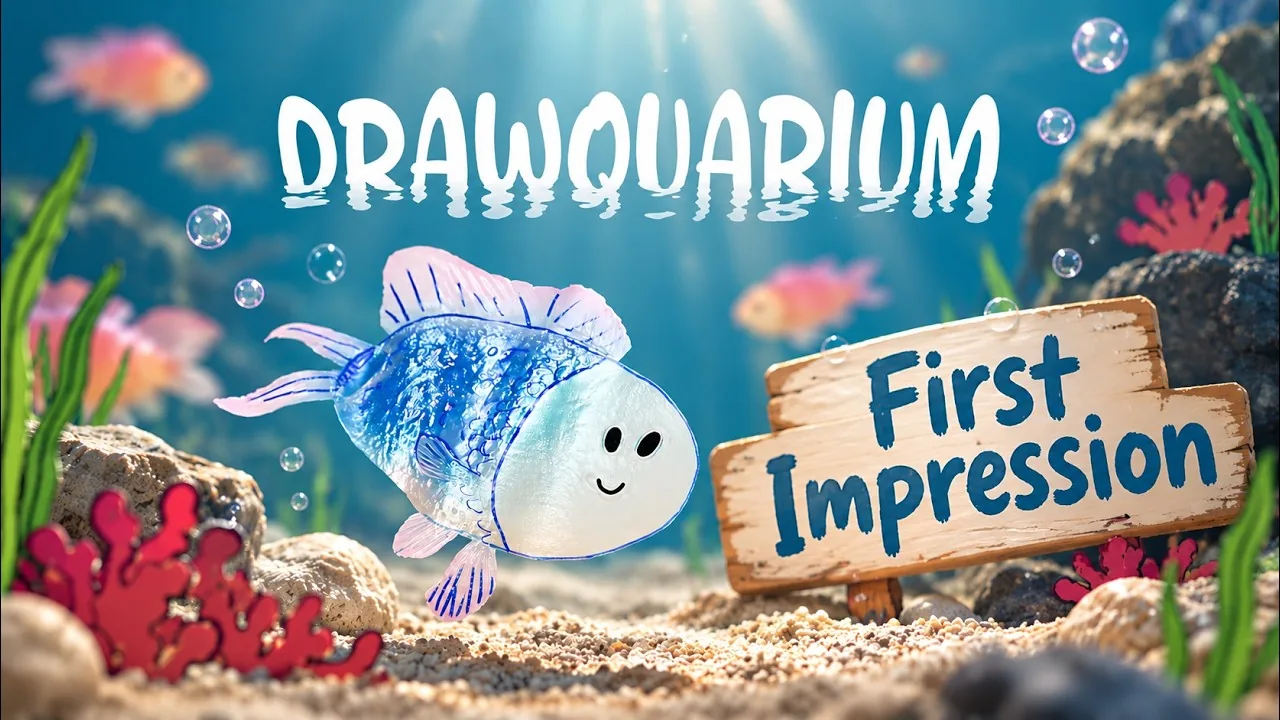
Starting Drawquarium requires painting two initial vegetation pieces to unlock fish creation, feeding your pets daily from the top menu, and expanding tank population milestones to access custom decorations and animated desktop backgrounds.
Developed by byKaleb and published by rokaplay, this sandbox simulation gives you a blank canvas inside an interactive glass tank. Whether you paint with a mouse or an external pen tablet, every stroke forms living marine life or scenery without requiring currency.
Unlocking Fish and Plant Creation
Every new tank starts empty. The game requires you to complete initial creative milestones before granting full access to creature tools:
- Click the add icon in the upper-left corner of the interface and select the plant category.
- Select an existing shape from the drawing templates or sketch a new outline from scratch.
- Switch to step two to apply base colors, gradients, and opacity adjustments.
- Confirm your creation and place the finished foliage along the substrate or rocks.
- Create and place a second unique plant specimen.
Completing two unique flora items immediately triggers the prompt allowing you to draw fish for your tank.
Canvas Tools and Customization Controls
The drawing studio offers tools to help you sculpt original species or adjust existing shapes:
- Brush and Eraser: Adjust brush size, hardness, and flow to manage line density and feathering.
- Opacity Slider: Lower the opacity slider to blend shadows and highlights over base colors.
- Symmetry Tools: Toggle horizontal or vertical symmetry to produce balanced fins, petals, or body outlines.
- Smooth Draw: Stabilizes brush strokes to reduce jagged lines when drawing with a mouse.
- Undo Function: Step backward through recent strokes using the interface button or the standard keyboard shortcut.
- Import Tool: Use the option to import png files to turn external transparent artwork directly into tank inhabitants.
Fish creation includes selecting movement profiles that dictate how your creations navigate water space.
| Swimming Profile | Best For | Movement Characteristics |
|---|---|---|
| Normal and Active | Midwater schooling fish, clownfish, and sharks | Swims steadily at medium depths across the tank |
| Floaty Chill | Jellyfish, slow floaters, and drifting organisms | Gently hovers in place with slow vertical drift |
| Spacecraft Flyer | High-speed swimmers and energetic creatures | Darting, rapid cruising across long tank distances |
| Hangs Down Low | Snails, bottom dwellers, and flatfish | Stays along the sand bed and crawls near rocks |
You can also toggle the wave animation switch on or off during creation to control body undulation.
Feeding Routine and Fish Care
Your creatures spawn as small babies and gradually increase in size over time. A prompt reading "I bet they're hungry" appears above the tank when creatures require care.
Click the yellow fish symbol located beneath the plus icon in the upper-left corner to feed fish. Dropping food near or slightly above your creatures allows them to notice the falling pellets, burgers, or pizza slices. The game notes that creatures require sustenance once every 24 hours.
Right-clicking the tank window taps on the glass, causing nearby fish to react and scatter briefly. Selecting an individual creature opens its profile card, displaying personal quotes, titles such as oldest fish, and friendship bonds with tankmates. From this panel, you can choose to clone fish to duplicate designs or remove them from the habitat.
Progression Milestones and Tank Customization
Building your ecosystem unlocks broader creative options. Reaching 10 fish, 30 plants, and two separate aquariums fulfills the milestone requirements needed to unlock decorations like castles and additional structures.
The edit aquarium menu lets you modify environmental conditions:
- Sand Substrate: Swap between different substrate textures and colors.
- Lighting: Test multiple lighting arrangements and party modes.
- Backgrounds: Change the rear tank display using solid colors, preset sky and foliage scenes, or custom images.
- Desktop Integration: Enable wallpaper mode from the settings menu to dock your live aquarium onto your Windows desktop, managed through an icon in the system tray next to the computer clock.
Next step
Clone Fish
Learn the exact steps to duplicate custom creatures in Drawquarium and manage tank population limits effectively.